Streamhouse for AI Agents Part 1 of 3: Set up an LLM and MCP tool in Confluent Cloud
Streamhouse for AI Agents Part 1 of 3: Set up an LLM and MCP tool in Confluent Cloud
In Part 1 of this tutorial series, you'll set up and test the infrastructure and third-party services for an agentic AI use case: a listener that creates short tasks in a project management platform from customer communications. This is a good example of why models need tools. LLMs are good at summarizing a customer's message, but they don't know about your project management platform and can't connect to it on their own. You'll use Amazon Bedrock as the model provider in Confluent Cloud and Linear as the SaaS project management platform (the tool for the model to call). Linear is similar to Jira or Asana.
Automatic ticket creation is a good fit for an AI pipeline because a wrong answer costs little. If an agent creates a ticket by mistake or routes one incorrectly, a person can fix it later.
In Part 2, you'll build and evolve a Streaming Agent for this use case. In Part 3 you'll further evolve the agent by grounding it with live business context from Kafka using the Real-Time Context Engine.
A note on how this tutorial relates to a broader Streamhouse data architecture: Streamhouse is an open, vendor-neutral category of data architectures that keep the current state of a business continuously available to production applications, analytics, and AI agents. It describes five stages: capture, transport, transform, govern, and serve. This series covers the part of that picture where an agent acts on business events as they happen instead of on data refreshed in batches. In this part, you set up the model and the tool that Flink SQL will call for each event. In Parts 2 and 3, customer communications and orders are records in Kafka topics (transport) with schemas registered in Schema Registry (govern), and Flink SQL invokes the agent on each new communication (transform). In Part 3, the Real-Time Context Engine (RTCE) serves current order data to the agent (serve) so that it can use the customer's membership level to decide how each support issue is prioritized.
Prerequisites
- A Confluent Cloud account
- The Confluent CLI installed on your machine
- Node.js and npm to inspect Linear's MCP server
- jq for parsing JSON on the command line
Create Confluent Cloud resources
Log in to your Confluent Cloud account:
confluent login --prompt --saveInstall a CLI plugin that streamlines resource creation in Confluent Cloud:
confluent plugin install confluent-quickstartRun the plugin to create the Confluent Cloud resources this tutorial needs: a Kafka cluster and a Flink compute pool. You can choose a different cloud provider (gcp or azure) or region. To list the supported regions for a cloud provider, run confluent kafka region list --cloud <CLOUD>. The plugin takes under a minute.
confluent quickstart \
  --environment-name agentic-ai-env \
  --kafka-cluster-name agentic-ai-cluster \
  --compute-pool-name agentic-ai-pool
This tutorial uses the plugin only to create infrastructure, not client configuration files, so you'll see the following output when it finishes:
No config files were created (no resources were created)
Quickstart complete. Exiting.
Set up Amazon Bedrock model access and AWS credentials
Sign up for an AWS account if you don't already have one.
This tutorial calls the Claude Sonnet 5 model on Amazon Bedrock in the us-east-1 region, which is billed through AWS Marketplace based on token usage. Open the Bedrock console, click Model catalog in the left-hand navigation, and ensure you have access to Claude Sonnet 5 from Anthropic.
You need an AWS access key to call the model from Confluent Cloud. Create an IAM user (or use an existing one) in the IAM console and attach an inline policy granting the bedrock:InvokeModel action:
{
  "Version": "2012-10-17",
  "Statement": [
    {
      "Effect": "Allow",
      "Action": "bedrock:InvokeModel",
      "Resource": "*"
    }
  ]
}
Then, from that user's Security credentials tab, click Create access key and choose Third-party service as the use case. Save the access key ID and secret access key. You'll need them when you create the connection in Flink.
If your organization provisions AWS access via SSO (AWS IAM Identity Center) and blocks iam:CreateUser with a service control policy, you won't be able to create an IAM user. In that case, use the temporary credentials from your SSO session instead. The role you assume must have the bedrock:InvokeModel permission:
aws sso login --profile <your-profile>
aws configure export-credentials --profile <your-profile>
This prints JSON containing AccessKeyId, SecretAccessKey, and SessionToken. Save all three. You'll pass the session token as aws-session-token when you create the connection in the next step. These credentials are short-lived, typically 1 to 12 hours depending on your organization's policy. When they expire, calls through the connection fail. To fix that, run these two commands again and re-create the connection with the new values.
Set up Linear account and create credentials
Sign up for a free Linear account (no credit card required). During signup, Linear prompts you to create a workspace. Give it a unique name and select a region. Click through the quick start prompts until you reach your workspace home page.
You need a Linear API key to call Linear as an MCP tool from Confluent Cloud. To create one, click the workspace dropdown at the top left, then click Settings. Select Security & access in the left-hand navigation, then click New API key under Personal API keys. Give the key a name. Under Permissions, select Only select permissions... and check only Read and Write. Click Create, and save the API key.
Create Bedrock and Linear connections
To create a remote model or MCP tool in Confluent Cloud, you need a connection to the external service. In this step, you create those connections.
To create connections to Amazon Bedrock and Linear, start a Flink SQL shell:
confluent flink shell --compute-pool \
  $(confluent flink compute-pool list -o json | jq -r ".[0].id")
Paste your AWS access key ID and secret access key into the following statement to create a connection to Amazon Bedrock's Invoke Model API. The endpoint targets the us.anthropic.claude-sonnet-5 inference profile, which is required for on-demand invocation of Claude Sonnet 5 from us-east-1:
CREATE CONNECTION `bedrock-connection`
  WITH (
    'type' = 'bedrock',
    'endpoint' = 'https://bedrock-runtime.us-east-1.amazonaws.com/model/us.anthropic.claude-sonnet-5/invoke',
    'aws-access-key' = '<AWS_ACCESS_KEY_ID>',
    'aws-secret-key' = '<AWS_SECRET_ACCESS_KEY>'
  );
If you're using temporary credentials from an SSO session instead of an IAM user's access key, also include the session token you saved earlier:
CREATE CONNECTION `bedrock-connection`
  WITH (
    'type' = 'bedrock',
    'endpoint' = 'https://bedrock-runtime.us-east-1.amazonaws.com/model/us.anthropic.claude-sonnet-5/invoke',
    'aws-access-key' = '<AWS_ACCESS_KEY_ID>',
    'aws-secret-key' = '<AWS_SECRET_ACCESS_KEY>',
    'aws-session-token' = '<AWS_SESSION_TOKEN>'
  );
You'll see the following output when the connection is created:
Finished statement execution. Statement phase: COMPLETED.
The server returned empty rows for this statement.
Next, create a connection to Linear's MCP server. Linear offers both streamable HTTP and SSE-based MCP endpoints. Paste your Linear API key into the following statement to create a connection to Linear's streamable HTTP MCP server:
CREATE CONNECTION `linear-mcp-connection`
  WITH (
    'type' = 'MCP_SERVER',
    'endpoint' = 'https://mcp.linear.app/mcp',
    'transport-type' = 'streamable_http',
    'token' = '<LINEAR_API_KEY>'
  );
Validate that both connections have been created:
SHOW CONNECTIONS;You will see:
+-----------------------+
|    Connection Name    |
+-----------------------+
| bedrock-connection    |
| linear-mcp-connection |
+-----------------------+
Inspect the Linear MCP server
In this section, you'll inspect Linear's MCP server to see which tools it has and which parameters they require. You'll need this when you call the tool later.
Run the following command from your terminal (not the Flink shell) to start an MCP server inspection utility:
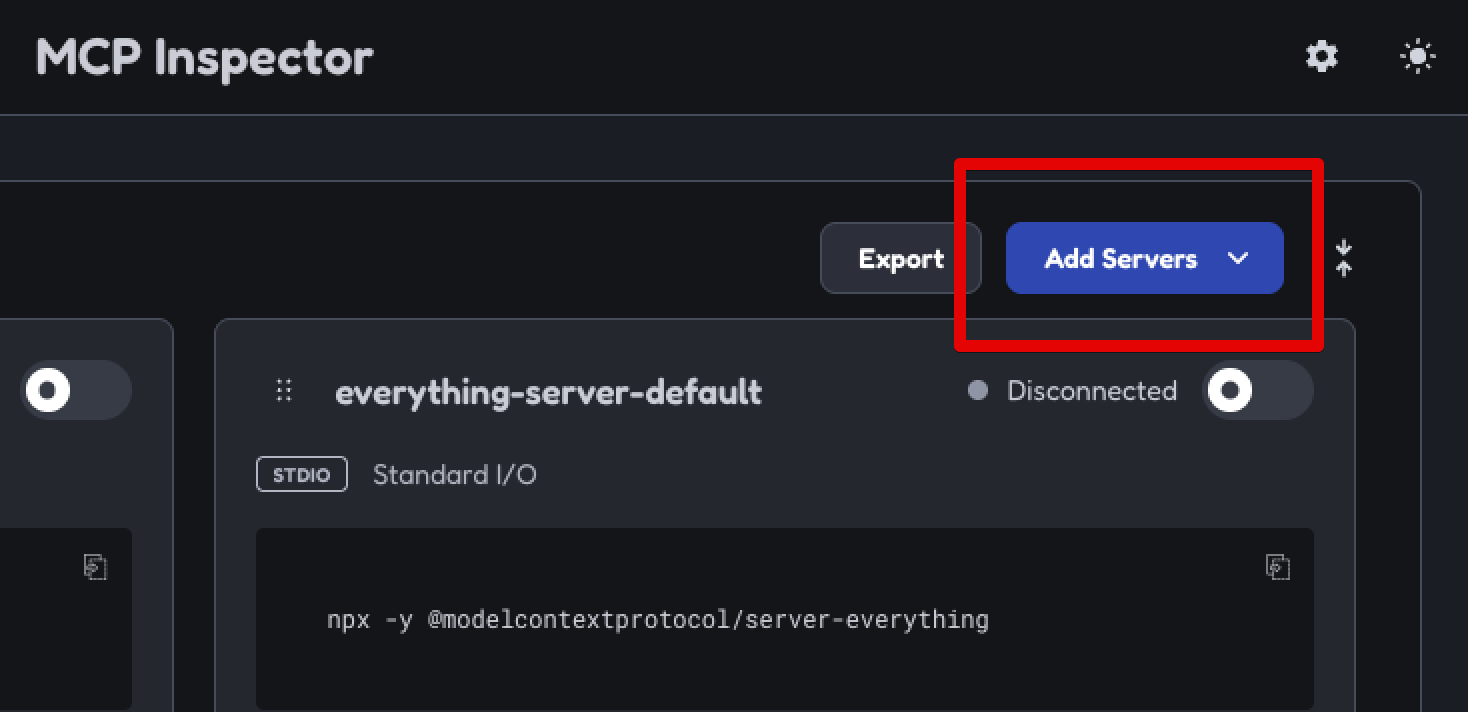
npx @modelcontextprotocol/inspector@latestClick the Add Servers button. Enter linear-mcp as the Server ID, select streamable-http as the Transport, and enter https://mcp.linear.app/mcp as the URL. Then click Add.
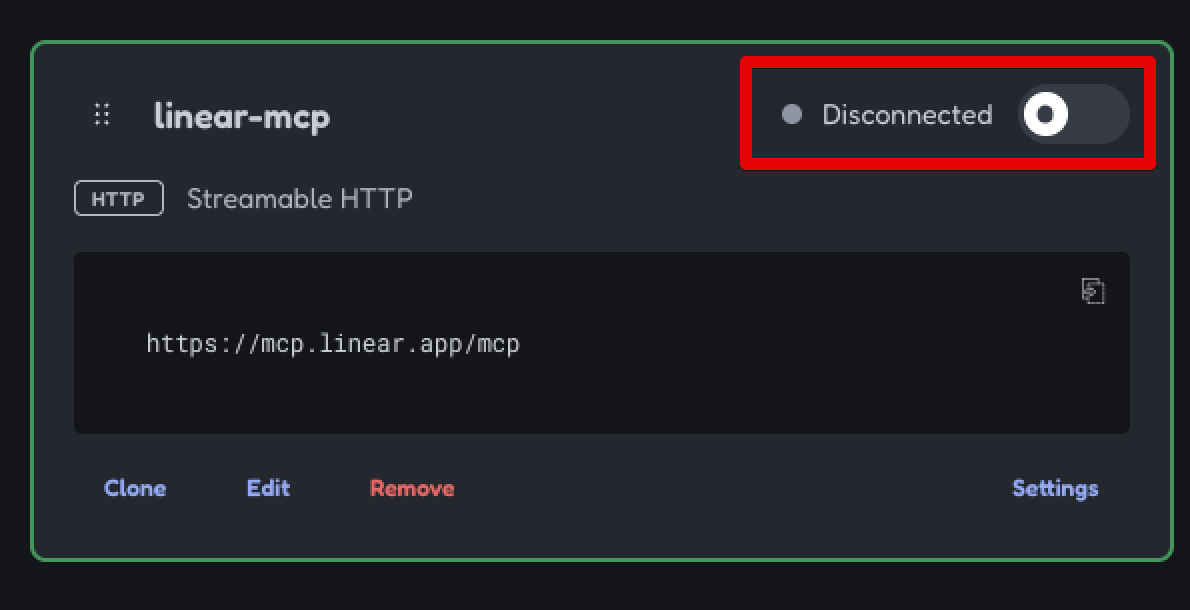
Toggle the radio button where it says Disconnected to connect to the server.
Once you're connected, click Tools at the top of the page. These are the tools you can use in an agentic AI workflow. This tutorial focuses on issue creation, so click the save_issue tool to see the fields required to create an issue.
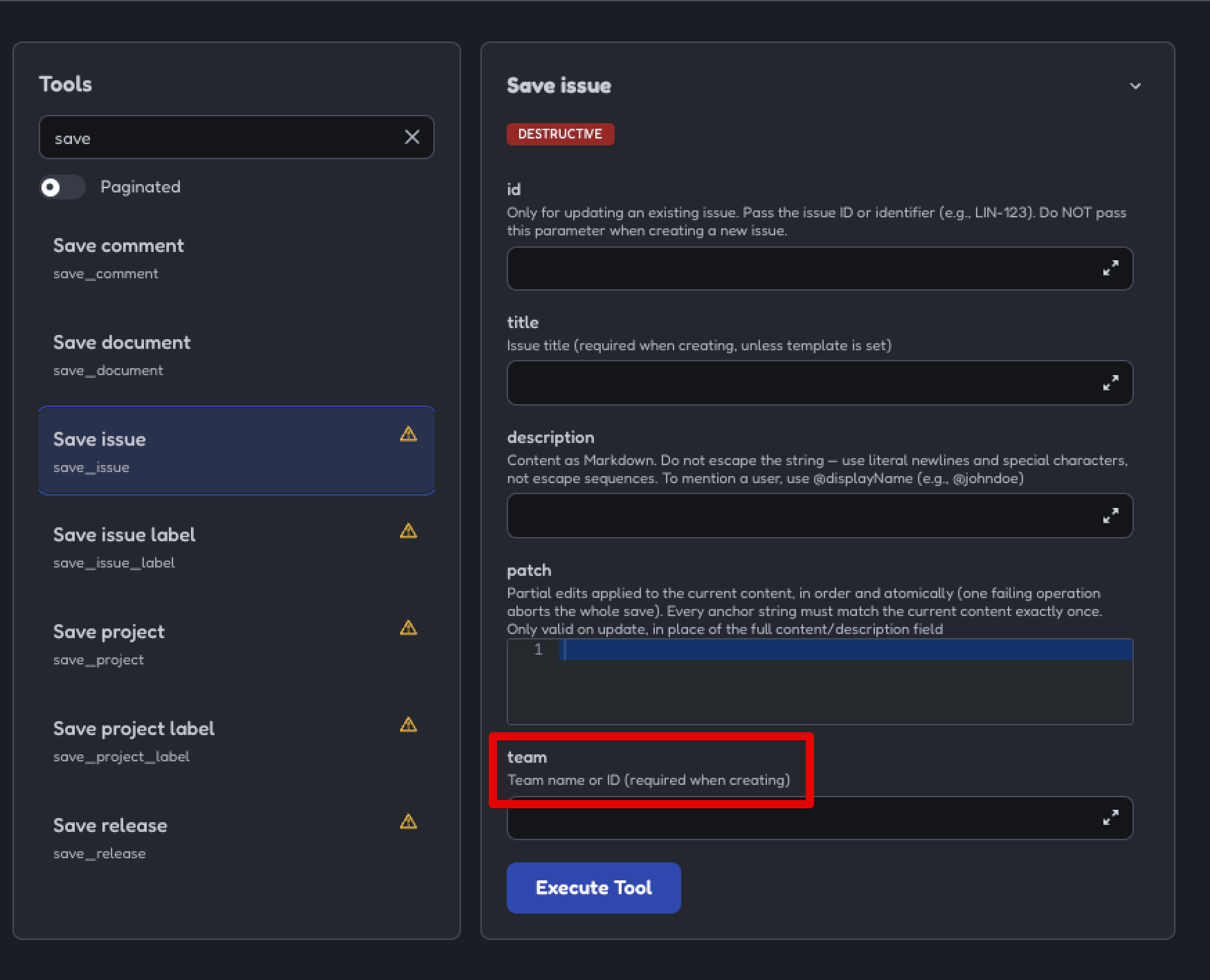
The tool has a required team field. To get your team ID (a GUID), run the following command in your terminal. Substitute your Linear API key:
curl \
  -X POST \
  -H "Content-Type: application/json" \
  -H "Authorization: <LINEAR_API_KEY>" \
  --data '{
    "query": "query Teams { teams { nodes { id name } }}"
  }' \
  https://api.linear.app/graphql | jq -r ".data.teams.nodes[0].id"
Create models
In the Flink SQL shell, create a model using the Bedrock connection created earlier. Anthropic models on Bedrock require max_tokens to be set explicitly, which you provide via the bedrock.params.max_tokens option:
CREATE MODEL chat_listener
INPUT(prompt STRING)
OUTPUT(response STRING)
WITH (
  'provider' = 'bedrock',
  'task' = 'text_generation',
  'bedrock.connection' = 'bedrock-connection',
  'bedrock.params.max_tokens' = '1024'
);
Next, create a similar model that also uses the MCP server connection. You'll use it to call Linear's save_issue tool in the next step. The bedrock.system_prompt option tells the model to prefer calling a tool over answering directly:
CREATE MODEL linear_mcp_model
INPUT(prompt STRING)
OUTPUT(response STRING)
WITH (
  'provider' = 'bedrock',
  'task' = 'text_generation',
  'bedrock.connection' = 'bedrock-connection',
  'bedrock.params.max_tokens' = '1024',
  'bedrock.system_prompt' = 'Use the best tool to respond to the input prompt',
  'mcp.connection' = 'linear-mcp-connection'
);
Validate that both models have been created:
SHOW MODELS;You will see:
+------------------+
|    Model Name    |
+------------------+
| chat_listener    |
| linear_mcp_model |
+------------------+
Test models and tool invocation
First, test the base LLM that doesn't call any tools:
SELECT
  prompt,
  response
FROM
  (SELECT 'What is a good family friendly dog breed? Answer concisely with only the most recommended breed.' AS prompt) t,
LATERAL TABLE(AI_COMPLETE('chat_listener', prompt)) AS r(response);
You should see output like the following. It can take 10 to 15 seconds to appear. Your output may differ because the model is nondeterministic.
prompt                                           response
what is a good family friendly dog breed? ...    Labrador Retriever
Next, test the MCP tool call. Substitute your Linear team ID:
SELECT
  AI_TOOL_INVOKE(
    'linear_mcp_model',
    'Create an issue from the following text using <LINEAR_TEAM_ID> as the team ID. I can''t log in to the online store. It says that my account has been locked out. When I try the forgot password route, I don''t get an email to reset it. Please help!',
    MAP[],
    MAP['save_issue', 'Save issue'],
    MAP[]
  ) AS response;
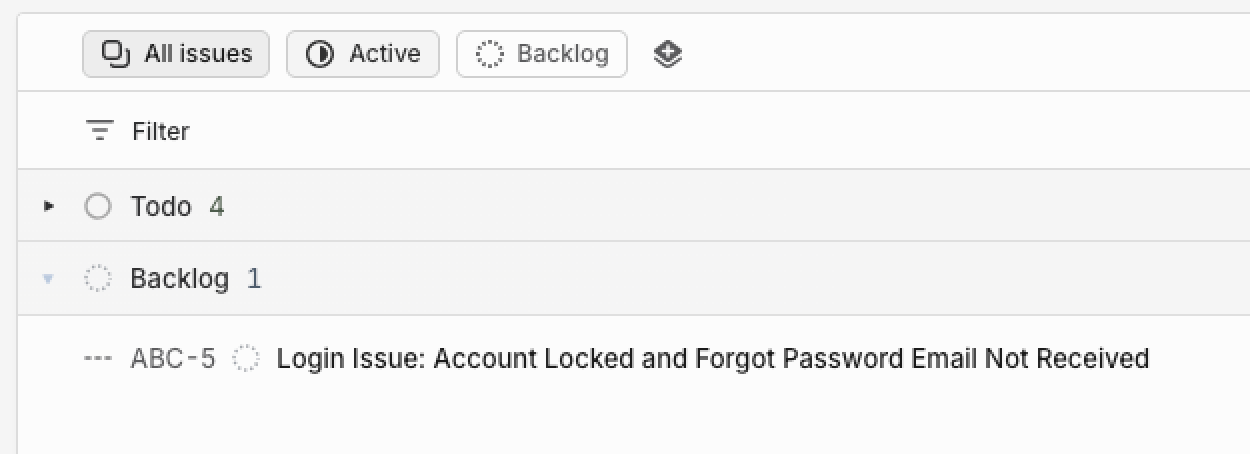
You should see a JSON response with the status and the action taken. In the Linear web app, click All issues. You'll see a new ticket in the backlog that summarizes the issue:
Next steps
You've created the models and tool and confirmed they work. Continue to Part 2 of this tutorial series.
Clean up
If you aren't continuing to Part 2, delete the agentic-ai-env environment to clean up the Confluent Cloud infrastructure created for this tutorial. Run the following command in your terminal to get the environment ID of the form env-123456 corresponding to the environment named agentic-ai-env:
confluent environment listDelete the environment:
confluent environment delete <ENVIRONMENT_ID>