Streamhouse for AI Agents Part 2 of 3: Build a Streaming Agent that uses MCP tools
Streamhouse for AI Agents Part 2 of 3: Build a Streaming Agent that uses MCP tools
In Part 1 of this tutorial series, you created and tested the models and tools for a customer support use case: turning unstructured customer feedback into short, structured issues in a project management platform (Linear). In this tutorial, you'll build on that foundation and create a Streaming Agent in Confluent Cloud. In Part 3, you'll extend the agent with live business context from Kafka, served by the Real-Time Context Engine, so it can add customer and order details to each issue.
A note on how this tutorial relates to a broader Streamhouse data architecture: Streamhouse is an open, vendor-neutral category of data architectures that keep the current state of a business continuously available to production applications, analytics, and AI agents. One of its principles is that data stays current as business events occur, rather than being refreshed through periodic batch processes. The Streaming Agent you build here follows that pattern. Customer communications arrive on a Kafka topic (transport) whose schema is registered in Schema Registry (govern), and Flink SQL invokes the agent on each new record (transform), so the agent acts on events as they occur and no batch job is needed. In Part 3, the Real-Time Context Engine (RTCE) serves current order data to the agent (serve) so that it can use the customer's membership level to decide how each support issue is prioritized.
Prerequisites
- Completion of Part 1 of this tutorial series with all resources left up and running: Set up an LLM and MCP tool in Confluent Cloud
Open the Flink SQL shell
Ensure that the agentic-ai-env environment is active:
confluent environment listIf it isn't, set it to be the active environment:
confluent environment use <ENVIRONMENT_ID>Start a Flink SQL shell:
confluent flink shell --compute-pool \
  $(confluent flink compute-pool list -o json | jq -r ".[0].id")
Create a tool resource for the Streaming Agent
In the Flink SQL shell, create a tool to access Linear's MCP server:
CREATE TOOL linear_mcp_tool
USING CONNECTION `linear-mcp-connection`
WITH (
  'type' = 'mcp',
  'allowed_tools' = 'save_issue',
  'request_timeout' = '30'
);
Create the Streaming Agent
Next, create a Streaming Agent that uses the tool you just created and the model from Part 1. The agent doesn't know your Linear team ID, so include it in the prompt:
CREATE AGENT chat_listener_agent
USING MODEL chat_listener
USING PROMPT 'Create an issue from the content using <LINEAR_TEAM_ID> as the team ID'
USING TOOLS linear_mcp_tool
WITH (
    'max_iterations' = '5'
  );
Test the Streaming Agent
Test the agent with sample customer communications. In production, you would produce communications into Kafka with a connector (for example, the HTTP Source V2 Connector against a communication platform's REST API) or another Kafka client. Here, you create a table and insert sample communications into it.
CREATE TABLE customer_communications (
  id STRING,
  prompt STRING
);
INSERT INTO `customer_communications`
VALUES
(UUID(), 'I cannot log in to the online store. It says the site is undergoing maintenance for an entire day.');Now run the agent on this input. The response column shows how the agent handled it. Open your Linear workspace to see the new issue.
SELECT
  status,
  response
FROM customer_communications,
  LATERAL TABLE(AI_RUN_AGENT('chat_listener_agent', `prompt`, `id`, MAP['debug', true]));
Evolve the Streaming Agent
The agent works, but there's room for improvement. To see an example, insert another complaint about the site maintenance:
INSERT INTO customer_communications
  VALUES
    (UUID(), 'Hi, I am not able to log in due to the site being under maintenance. The ETA for the maintenance to be completed was last night, so it seems like something might be wrong.');
Then run the agent query again:
SELECT
  status,
  response
FROM customer_communications,
  LATERAL TABLE(AI_RUN_AGENT('chat_listener_agent', `prompt`, `id`, MAP['debug', true]));
Linear now has duplicate issues. The agent can only write to Linear, so it can't tell that an issue already exists. To fix that, let the agent read your Linear workspace.
Linear's MCP server has more tools than issue creation. The list_issues tool lets the agent look up existing issues. Run the following statement to allow the tool to create and list issues:
ALTER TOOL linear_mcp_tool
SET (
  'allowed_tools' = 'save_issue,list_issues'
);
Next, update the agent prompt to prevent near-duplicate issues:
ALTER AGENT chat_listener_agent
SET PROMPT 'Create an issue from the content using <LINEAR_TEAM_ID> as the team ID. Do not create a new issue if a similar issue already exists.';
Run the agent again:
SELECT
  status,
  response
FROM customer_communications,
  LATERAL TABLE(AI_RUN_AGENT('chat_listener_agent', `prompt`, `id`, MAP['debug', true]));
If you add more complaints about the site maintenance, the agent takes no action, and the response explains why. For example: An issue similar to your problem already exists in the team's Linear workspace.
Test with a new issue
To check that the agent handles a new issue correctly, insert a communication that requests a refund for a shipping mistake:
INSERT INTO customer_communications
  VALUES
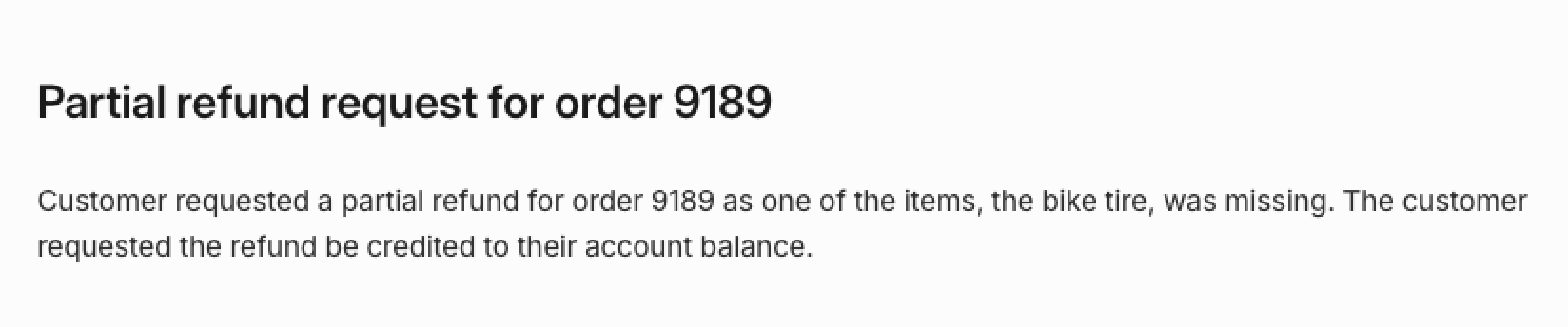
    (UUID(), 'Hi, I would like a partial refund on order 9189 because one of the items (the bike tire) was not included. You can just credit my account balance, please.');
Run the agent again:
SELECT
  status,
  response
FROM customer_communications,
  LATERAL TABLE(AI_RUN_AGENT('chat_listener_agent', `prompt`, `id`, MAP['debug', true]));
The agent skips the earlier maintenance complaints because issues for them already exist, and it creates a new issue for the refund request. Open your Linear workspace to see it:
Further experimentation
To make the agent smarter, try these enhancements:
- Change the agent prompt to set issue priority
- Let the agent add multiple communications about the same problem to one issue. Hint: Linear's MCP server provides update_issue and create_comment tools.
Next steps
In Part 3, you'll give the agent live business context from Kafka with the Real-Time Context Engine, and then run it continuously.
Clean up
If you aren't continuing to Part 3, delete the agentic-ai-env environment to clean up the Confluent Cloud infrastructure created for this tutorial. Run the following command in your terminal to get the environment ID of the form env-123456 corresponding to the environment named agentic-ai-env:
confluent environment listDelete the environment:
confluent environment delete <ENVIRONMENT_ID>