Exercise - Creating and Populating Apache Kafka® Topics


Wade Waldron
Principal Software Practice Lead


Afzal Mazhar
Principal Software Practice Lead
Exercise - Creating and populating Kafka topics
We will start building our data engineering pipeline in this exercise. The domain we are working with is an online multiplayer kart racer video game.
We'll be working with three data sources for this domain:
-
players
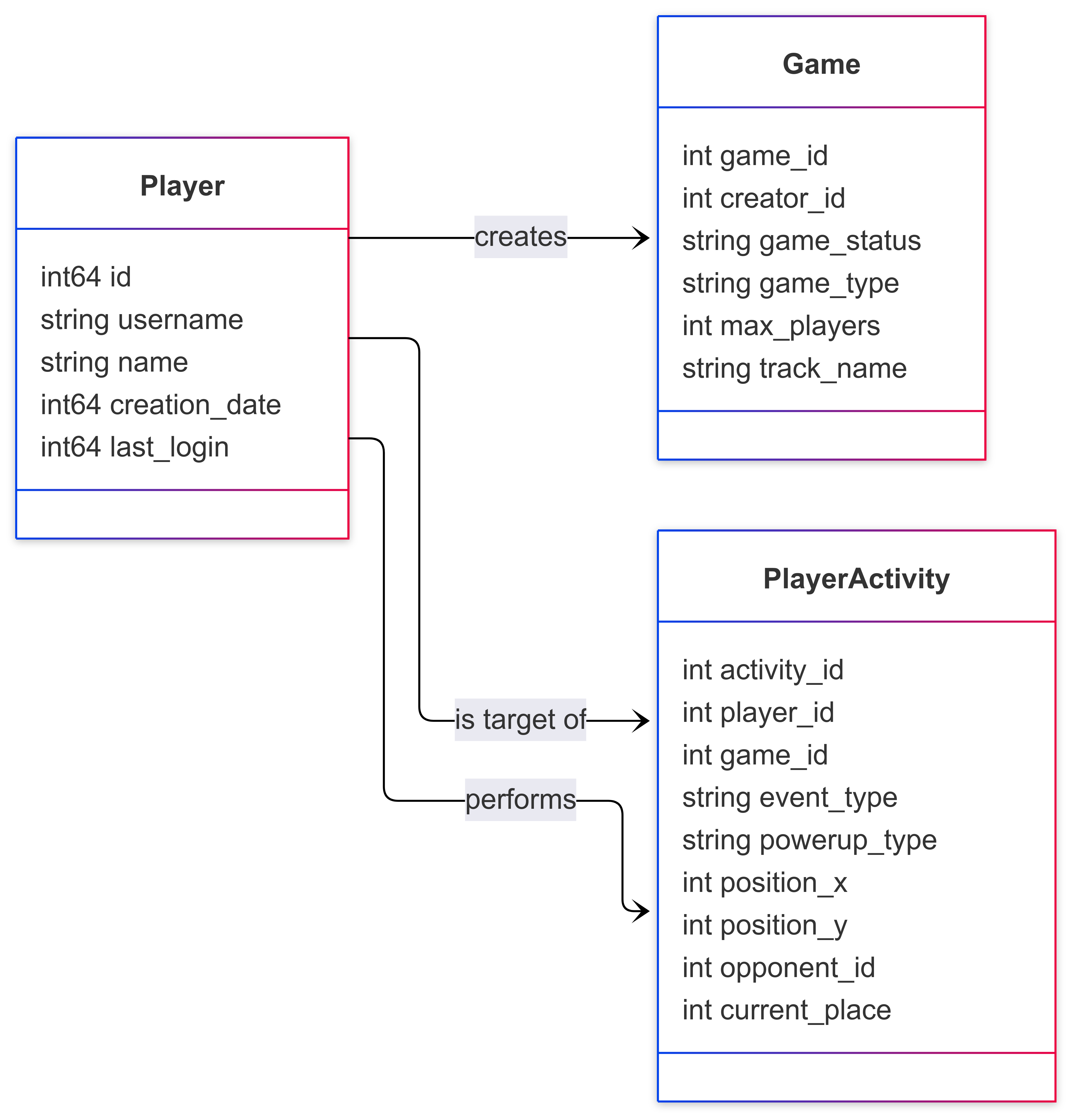
When a player creates their account or logs in to the system, details about the account, such as the creation date, login date, username, etc., are packaged into an event pushed to the players topic.
-
games
Players can create custom online game sessions. They can configure details about the session, such as which game mode will be played, which track will be used, and how many players are allowed in the race. These details are packaged into an event and then pushed to the games topic.
-
player_activity
As the game is being played, players will perform various actions. This can include collecting or using a power-up, passing another player, finishing a lap, or finishing the race. Details about these activities will be packed into an event and then pushed to the player_activity topic.
The structure and relationship of these topics are shown in the following diagram:
In a more traditional data engineering pipeline, the data for these topics might be stuck in a database somewhere. Part of the task of data engineering would be to copy that data out of the database and into a data lake or data warehouse. This would typically be done using something like a batch job.
With data streaming, we want to avoid those batch copies. Instead, we might use something like Change Data Capture or Apache Kafka® Connectors to copy the data into Apache Kafka in real-time, or near real-time. Alternatively, the data could be pushed directly to the topic from the Game Engine.
For example, the players data might live in a SQL database somewhere and get extracted using a CDC connector. The games data could live in a NoSQL database and might get extracted using a connector for that database. And the player_activity data might be pushed directly to the topic from the game engine itself.
However, since this isn't a real game, we will randomly generate the events using an external tool instead. Imagine this tool is a stand-in for the real system.
Select the environment
Before we can create topics, we need to ensure we're working in the correct Confluent Cloud environment and cluster that we set up in the previous exercise.
In Confluent Cloud, navigate to the data_engineering environment we created in the previous exercise.
Command line reference
Ensure the correct environment is active.
List the environments using:
confluent environment listThe data_engineering environment should be active (It will have a * in the Current column). If it isn't, set the active environment using:
confluent environment use <ID>Select the cluster
With the environment selected, we now need to select the correct Kafka cluster.
In Confluent Cloud, navigate to the exercises cluster we created in the previous exercise.
Command line reference
Ensure the correct cluster is active:
List the clusters using:
confluent kafka cluster listThe exercises cluster should be active. If it isn't, set the active cluster using:
confluent kafka cluster use <ID>Create the topics
Now we'll create the three topics needed for our game data and assign schemas to them. We'll set a short retention period to minimize free usage consumption.
In Confluent Cloud, create three new topics named players, games, and player_activity. Set the retention period on them to one hour. For each topic, assign a value schema using the schemas found in the schemas folder in the GitHub repository.
Command line reference
Make sure we're working in the learn-data-engineering-exercises repository that we cloned during the Confluent Cloud setup exercise.
Use the following command to create the players topic:
confluent kafka topic create players \
  --partitions 6 \
  --config retention.ms=3600000
Then assign a schema to the topic using:
confluent schema-registry schema create \
  --subject players-value \
  --schema schemas/players.json \
  --type json
Repeat this to create the games and player_activity topics, modifying the commands as required.
Set up the random data generator (JR)
With our topics created, we need to populate them with game data. We'll use a random data generator called JR to simulate the streaming data from our video game. Either install JR locally or run it from a Docker container.
If you prefer to use Docker, start by installing Docker on your machine by following the Getting started with Docker guide.
If you prefer to install JR locally, follow the instructions on the Building and Installing JR page.
The exercises use a set of custom JR configurations. These are found in the exercises repository under the jr folder.
JR needs a Kafka configuration file in order to write to the topics. If we ran the quickstart in the Confluent Cloud setup exercise, the jr/kafka/config.properties configuration file has been filled in for us.
If the file is missing, locate the jr/kafka/config.properties.template file, and copy it to jr/kafka/config.properties. Fill in the values for the bootstrap server as well as the username and password with the key and secret to the cluster.
Populate the topics
Now we'll run JR to start generating data and populating our topics. Two scripts have been provided to make this easy.
If you installed JR locally, execute the following script to populate the topics:
./generate_data_local.shIf you're using Docker, execute the following instead:
./generate_data_docker.shLeave the scripts running while continuing through the next steps.
Note: The JR data emitters are configured to preload the topics with a set of records and then continuously emit additional records for one hour. Coincidentally, this matches up with the retention period of our topics. This ensures we don't accidentally leave it running and consume far more of our Confluent Cloud resources than we might like.
Inspect the topics
With data flowing into our topics, let's verify that everything is working correctly by inspecting the messages.
Select the topics in Confluent Cloud to preview the incoming messages. Inspect the messages and ensure they look correct based on the schemas provided.
Command line reference
To inspect the players topic using the CLI:
confluent kafka topic consume \
  players
The quickstart we ran in the Confluent Cloud exercise has cached the api key and secret so the CLI is authorized to consume from the topic. If that is not the case, pass --api-key <key> and --api-secret <secret> to the above command. Remember to replace the <key> and <secret> with the values from the Kafka key.
Repeat the command, modifying as required, to inspect the games and player_activity topics.
Finish
We have created three Kafka topics and populated them with data for the kart racer. The next step is to analyze the data and derive insights from it. This will be our task in future exercises.
This brings us to the end of the exercise. Feel free to stop the data generator. We can restart it when we reach the next exercise.
Use the promo codes DATAENGINEERING & CONFLUENTDEV1 to get $25 of free Confluent Cloud usage and skip credit card entry.
Be the first to get updates and new content
We will only share developer content and updates, including notifications when new content is added. We will never send you sales emails. 🙂 By subscribing, you understand we will process your personal information in accordance with our Privacy Statement.